
Wedding Invitation Proofreading Checklist: What to Check Before Approving
What to check before approving your final invitation
Before you say “approved”, check the exact file your guests will receive. A beautiful design can still carry a wrong date, a missing function or an unusable map link. Use this checklist for a wedding video, PDF or image card, then ask one other person to read it too.
Jump to: Names and event details | Phone and link checks | Final check and messages
Copy ready: Correction message | Approval message
1 Check names and every event
Compare the couple’s names, parents’ names and family names with the spelling supplied by each person. Check titles, initials and Hindi or other-language text carefully. Remove sample names, placeholder text and events you did not request.
For each function, check its own date, year, weekday, arrival time and venue. A correct wedding page does not mean the mehndi or reception page is correct. Write AM or PM, and use the month in words to avoid ambiguity.
Example: “Friday, 14 February 2027” is inconsistent. That date falls on Sunday. Confirm which detail is wrong before asking the designer to change it; do not guess.
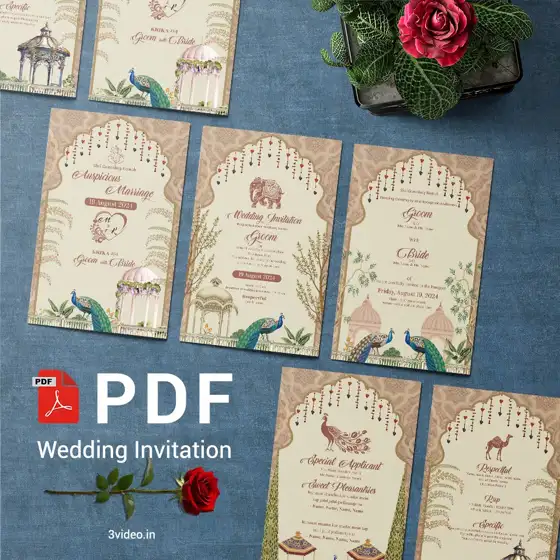
Real product reference: review every page separately. A decorative mockup is not a substitute for the readable final PDF. View this 3VIDEO design
2 Check the venue and the reply details
Confirm the full venue name, hall or branch, address and city. Check the reception separately if it is elsewhere. Confirm the RSVP contact and deadline with the host; use a country code when international guests may call.
Open the map link in the final file and compare the location with the written address. For an RSVP form, test the guest link, not the editing link. Try it without the owner’s signed-in account. If access is blocked, ask for it to be fixed before approval.
Need to repair the links? Follow our Google Maps and RSVP PDF guide. Google also explains how to share a map or location.
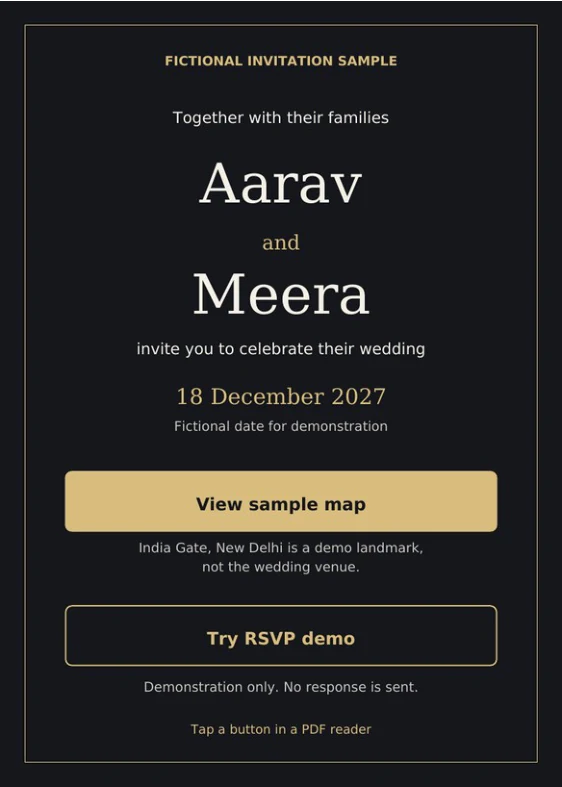
Reference from our published demo: test the buttons in the PDF, not this picture. This sample uses India Gate as a demo landmark; its RSVP sends no response. Open the sample guide
3 Review on a phone from start to finish
Send the exported invitation to yourself in the way you plan to share it. Open the received file on a phone. Names, times and addresses should be readable without repeated zooming; check for cut-off lines, poor contrast and incorrect photo crops.
For video, watch every scene with sound. Read the details at normal playback speed and check that the final frame is complete. For a PDF, open every page and test each link. For an image card, put clickable links in the accompanying message; printed button text alone will not open a link.
If the received video looks soft, use our WhatsApp invitation quality guide before asking for design changes.
4 Give one clear final response
Check the latest version after corrections, including nearby text that may have shifted. Make sure the video, PDF, image card and accompanying message agree. Ask one family member to check unfamiliar names and another person to read the invitation fresh.
Before approving, confirm these six things:
- All names and language are correct; no placeholders remain.
- Every function has the correct day, date, year and AM or PM time.
- Venue names, addresses and map destinations match.
- RSVP details work for a guest, where included.
- The received file is readable, complete and uses the intended photo and audio.
- The version and invited events are the ones you intend to share.
Copy ready correction message
Please update [filename/version]: on [page number or video timestamp], change “[current text]” to “[correct text]”. Keep the rest unchanged. Please send the revised file for a final check.
Copy ready approval message
I have checked [filename/version], including the names, event details, layout and links where included. I approve this version.
Only send the approval message after the checks are complete. Use the exact filename or version so an older preview cannot be mistaken for the approved one.
One last practical check
If you spot an error after approval, contact the designer before distributing the invitation. Ask what can still be corrected and whether any extra time or charge applies. Do not assume that a new export has automatically replaced files already shared.
For the message that goes with your finished card, see our WhatsApp wedding invitation wording guide.
Further reference: Polina Perri’s wedding proof checklist also highlights checking names, dates and layout.