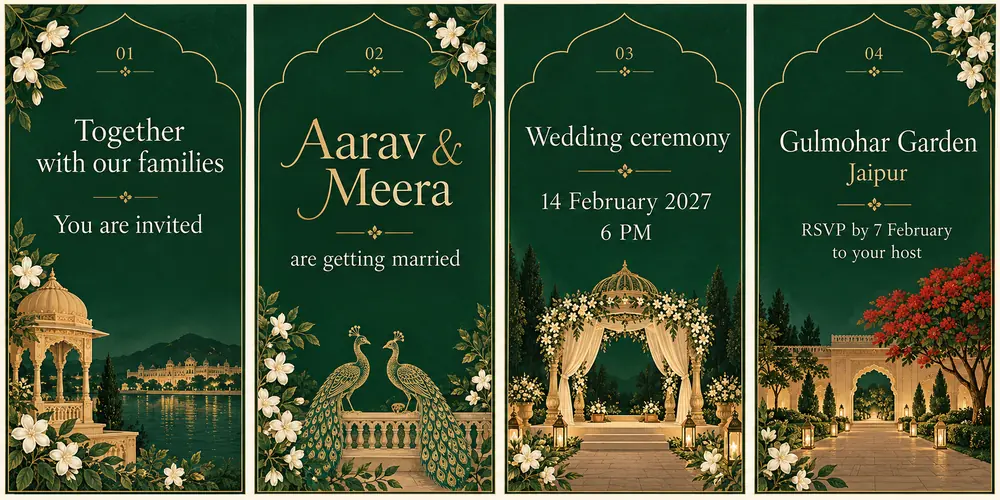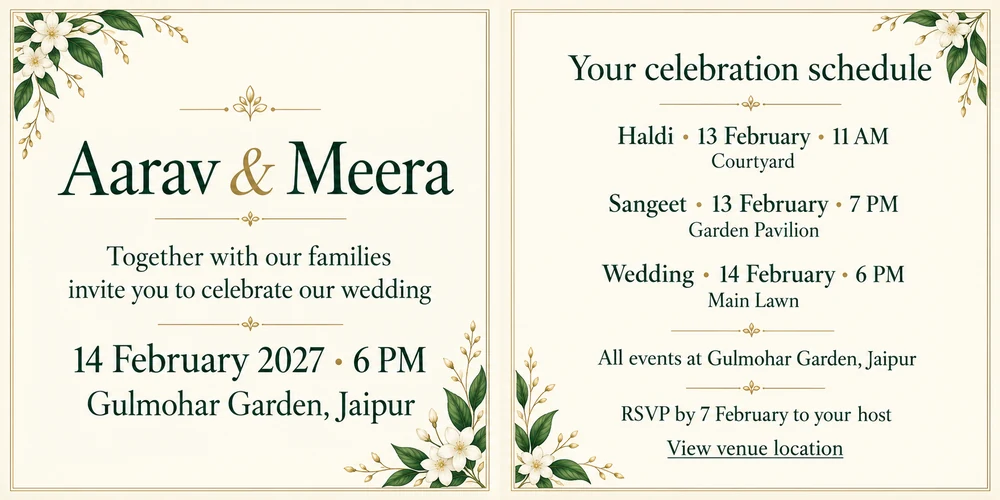
Blurry Invitation Video on WhatsApp: How to Fix It
If your invitation looks clear on your phone but soft after sending, try WhatsApp’s HD option or send the saved video as a Document. If the original file is already blurry, changing the sharing method will not bring back the missing detail.
Start with one test, not another export: play the original outside WhatsApp, then compare it with the copy received by a trusted person. Check the names, date, time and venue. Those details matter more than whether the background animation looks perfect.
Find where the blur starts
Open the final video in your phone’s gallery or video player, not just its chat thumbnail. Pause on the details screen and read it at a normal viewing size.
- The original is blurry: check that you downloaded the final export rather than a preview, screen recording or old copy. If the face is soft but the lettering is sharp, ask for a better source photo. If everything is soft, ask the designer to check the export.
- The original is clear but the received video is soft: test a different sharing method below. WhatsApp says shared media is usually compressed and can be lower quality than the original.
- The video is clear but the address is difficult to read: the layout may need larger text, stronger contrast or more reading time. A higher-quality send alone will not solve tiny lettering.
- You only have a copy from another chat: ask for the saved final file. That copy may already be reduced quality; forwarding it cannot recreate detail that is missing.
For a birthday invitation that needs design changes, use our birthday video customisation guide. It explains what to prepare before requesting a revised design.
Try HD for chat sharing
HD is a useful first test when you want guests to receive the invitation as chat media. It can improve clarity compared with Standard quality, but do not treat it as a promise of the original file’s quality.
- Open the intended chat. On Android, use the attachment button and Gallery. On iPhone, use the plus button and the photo or video library.
- Select the saved final video. If an HD control is shown, choose HD quality before sending.
- Send it to your test recipient and compare the received video with the original.
To make HD your default, open WhatsApp Settings, then Storage and data, then Media upload quality, and choose HD quality. Controls can differ by app version. See WhatsApp’s HD guidance and its editing instructions for Android or iPhone.
For a visual walkthrough, watch WhatsApp’s official HD photo and video tutorial. The sending section starts at 0:13; default quality settings start at 0:52. Published by WhatsApp on 23 December 2024, the tutorial may show a different layout from your app version.
Open the tutorial on YouTube if the player does not load. Loading the video connects to YouTube.
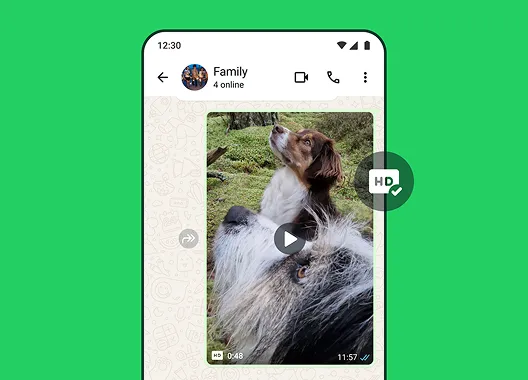
Example: select your saved “Aarav and Meera wedding invitation final.mp4”, choose HD if available, and send it to one family member. Ask them to read the venue on the last screen. Do not replace your final export with a downloaded preview.
Do not judge the result only from the small chat preview. Ask your tester to open and play the received video. If the names or venue are still difficult to read, try the Document route next.
Send the saved video as a Document
Use this route when you want to attach the saved video file rather than select it through the ordinary photo and video picker. A video does not need to be converted into a PDF to be sent as a Document.
Find Document on Android
Open the chat and tap the paperclip attachment button. In the attachment menu, choose Document, then select the saved video file.

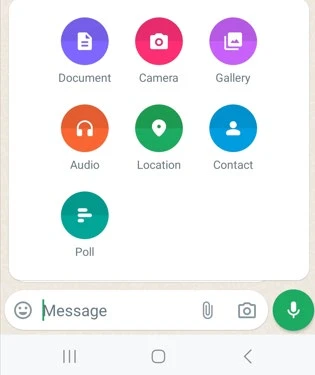
Example: find “Aarav and Meera wedding invitation final.mp4” in the folder where you saved the designer’s download. Check the filename before sending. If the file picker does not show it, save the final download in an accessible file location first.
Find Document on iPhone
Open the chat, tap the plus button and choose Document. Select the saved video from an available file location, such as iCloud Drive.
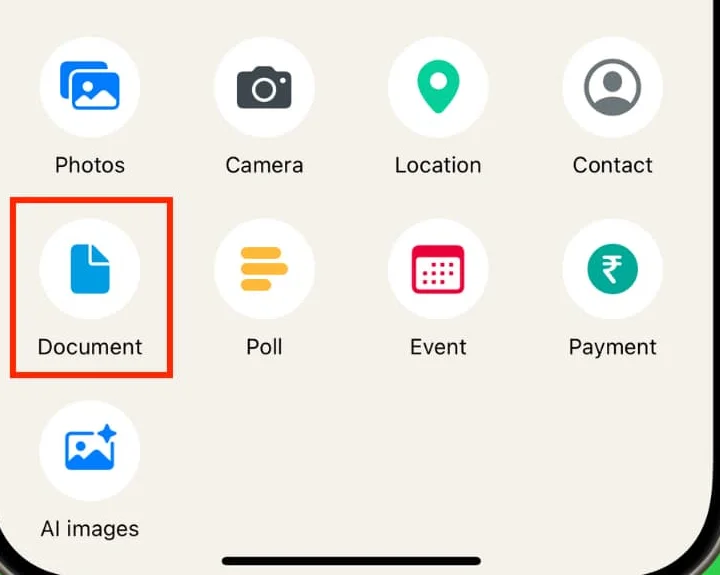
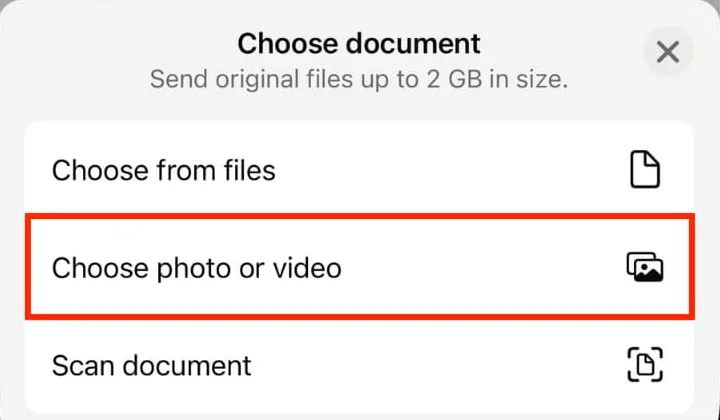
Example: choose the final invitation from Files, or use Choose photo or video if your version shows that option and the final video is in Photos. Do not choose Scan document; that is not the route for attaching an existing invitation video.
Check the filename, then send. Ask your tester to download and open the attachment before comparing it. Follow WhatsApp’s attachment instructions for Android or iPhone. This is a file-sharing option to test, not a repair for a blurry original or a guarantee of identical display on every phone.
Tell guests what the attachment contains. For a warmer introduction than “please download”, adapt our WhatsApp wedding invitation messages.
Fix text that is still hard to read
Ask the designer to check the specific screen that fails, rather than simply requesting “more HD”. Give a timestamp and say what you cannot read.
- Make the couple’s names, event date and venue larger before enlarging decorative text.
- Move fine lettering away from detailed flowers, glitter or a busy photograph.
- Split several functions across separate screens instead of shrinking the entire schedule.
- Hold the details long enough for someone seeing the invitation for the first time to read them.
These are design requests, not assumptions about what a purchased template includes. Confirm the available changes. For birthday artwork, our invitation background guide helps you choose a background that leaves room for readable details.
Keep the venue address and location link in the accompanying message too. Guests should not need to pause an animation while finding the venue.
Check Status separately
A successful chat test does not prove that the same video will look equally clear in Status. WhatsApp’s current HD guidance says HD media is not available for Status updates. Do not rely on the chat HD setting to fix a Status upload.
Use Status as an announcement, then send the full invitation directly to the people invited. Check who can see your Status and leave out private addresses or contact details you do not want that audience to receive. Check the Status preview for cut-off names and missing details. If it needs a shorter layout, ask for a separate version rather than trimming away the time or venue.
Copy ready messages
Ask someone to check the received video
“Could you test this invitation before I send it to everyone? Please open the video and check whether you can read [Names], [Date and time] and [Venue] without zooming. I’m testing [HD video / Document attachment]. If anything is unclear, please tell me which screen and whether the attachment opened normally.”
Send the invitation file to guests
“We’d love you to join us for [Occasion] on [Date] at [Time with AM or PM], at [Venue, City]. Our invitation video is attached as a file; please tap it to download and open it. Venue location: [Maps link]. Please reply by [RSVP date] to let us know if you can come.”
Ask the designer for a targeted fix
“The invitation is difficult to read at [Timestamp], especially [Names / Address / Event schedule]. The saved final file looks [Clear / Blurry], and the copy received through [Standard / HD / Document] looks [Describe result]. Could you check [Source photo / Export / Text size / Contrast / Reading time] and confirm what changes are included? Please send the revised final file with a clear version name.”
Replace the brackets with what you actually tested. For an attendance follow-up later, use a short RSVP reminder rather than sending the whole video again.
Before sending to everyone
- Keep one clearly named final file, separate from previews and earlier versions.
- Test the exact method you intend to use, with someone else’s phone.
- Confirm names, date, AM or PM, venue and RSVP details in both the video and message.
- Check that the received file opens and the details are readable. A completed send alone does not prove that.
If guests would rather read the details than open a video file, compare video invitations, PDFs and image cards before choosing a second format. You may only need a simple text message alongside the video.
Start with a clear original, test the received invitation and change only what the test shows is wrong. You do not need to redesign the whole video when the problem is simply how it was shared.