
How to Add Google Maps and RSVP Links to a PDF Invitation
A PDF invitation can do more than display a venue and phone number. Add a map button that opens the correct location and an RSVP button that opens your reply form. The button needs a real hyperlink; drawing a button or sharing its screenshot does not make it clickable.
Contents
1 Map | 2 RSVP | 3 Add links | 4 Test the PDF
Jump straight to the sample invitation
1 Copy the correct Google Maps link
Find your venue in Google Maps and check its full address, branch and entrance. On desktop, open the selected place and choose Share, then Copy Link. Some layouts use the map menu: Share or embed map > Send a link > Copy link. Copy the link, not the Embed a map HTML.
Open the copied link in a separate tab. Does it show the right venue rather than a similarly named hotel? Keep the written address on the invitation too, so guests have a fallback.
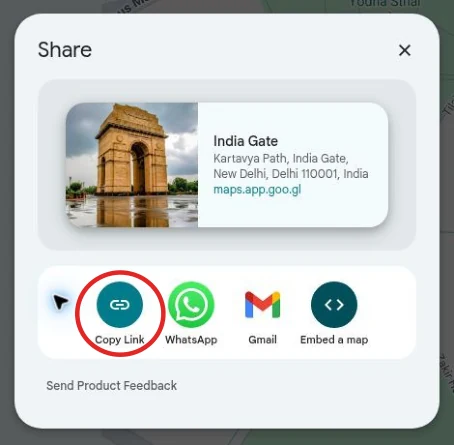
Google Maps screenshot, accessed 1 November 2026. Map data ©2026 Google. India Gate is a demo landmark, not a wedding venue. Google Maps sharing help
Example Two functions at different venues? Use separate labels: Wedding venue and Reception venue. Attach each venue's own link instead of reusing one map button.
See 3VIDEO PDF invitation designs
2 Prepare the RSVP destination
Create a short reply form with Guest name, Attending or not attending, Number of guests and Functions attending. In Google Forms, check responder access, publish the form, then use Published > Copy responder link. Do not copy your editing-page address.
Test the link in a signed-out browser. If your guests should not need an account, check restrictions; Limit to 1 response requires Google sign-in. Keep View results summary off if you do not want other respondents seeing guest answers.
A PDF link only opens the form. Attendance is recorded when the guest completes and submits it, not when they tap RSVP.
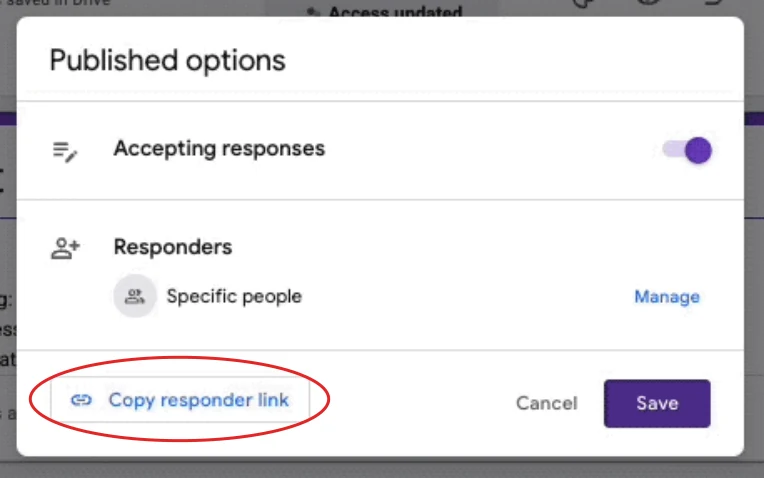
Official Google Forms demo. It shows Specific people; use Manage to choose access appropriate to your guests. Google interface source
Example Ready-to-use button: RSVP by 10 December. Helper line: Please tell us how many guests will attend. Confirmation: Thank you. We have received your response.
Google Forms publishing and responder links
3 Add the links to the PDF
Open the invitation in desktop Adobe Acrobat with PDF editing available. In Adobe's documented interface, choose Edit, then More under Add Content, then Link > Add or edit a link. Drag a rectangle over the full map button, not just its first word.
In Create Link, choose Open a web page. Continue with Next, paste the map URL and confirm. If your artwork already has a button border, an invisible link rectangle keeps that design clean. Repeat over the RSVP button using the form's responder link, then save a new PDF copy.
If these editing tools are missing, check your Acrobat plan or ask your invitation designer to add the links. Reading a PDF and editing its links are different tasks.
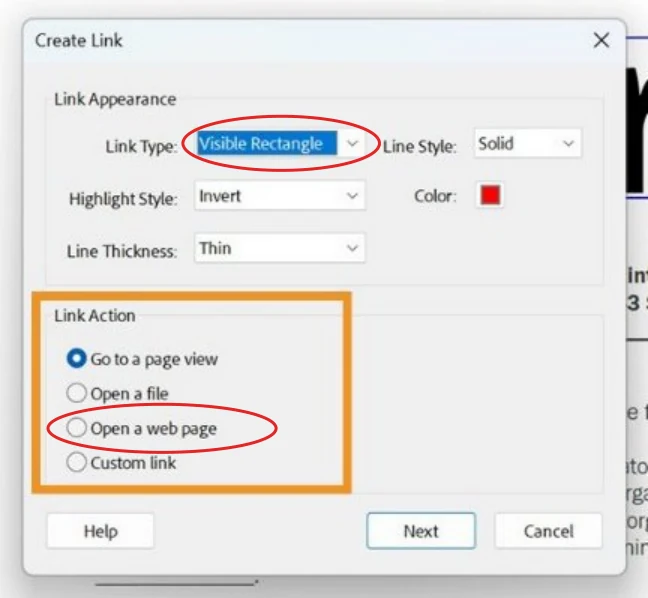
Adobe Help interface reference, accessed 1 November 2026. The defaults shown are Visible Rectangle and Go to a page view. For a web button, select Open a web page; use Invisible Rectangle if the artwork already has a border. Adobe link instructions
Example Button pairing: View wedding venue opens the venue link; RSVP by 10 December opens the reply form. Neither button should open your private design editor.
Compare PDF, video and image invitations
4 Test the file guests will receive
Close the editor and open the saved PDF. Test both buttons on a phone and on a computer. Confirm the map location, form access and the complete tappable area. Make one test response in your own form and check that it arrives; remove that test response before counting guests.
Share the PDF file itself, not a screenshot or JPG export. If an in-app preview does not activate links, download the PDF and open it in a PDF reader. If the wrong place opens, replace the URL; if a form asks for permission, fix responder access; if nothing happens, check that the exported PDF still contains the link.
For your sending message, use: Open the attached PDF, tap View wedding venue for directions, and use RSVP by 10 December to reply.
Read the WhatsApp invitation sharing guide
Try the sample invitation
The downloadable two-page sample shows a fictional Aarav and Meera invitation. View sample map opens a public New Delhi landmark for demonstration, not an actual wedding venue. Try RSVP demo jumps to a sample reply page inside the PDF and sends nothing. Replace both destinations before using this design for a real event.
For a real design reference, see 3VIDEO's Rajwada Vibe PDF invitation. Confirm the required link features when ordering; a product example is not proof that every design includes them.
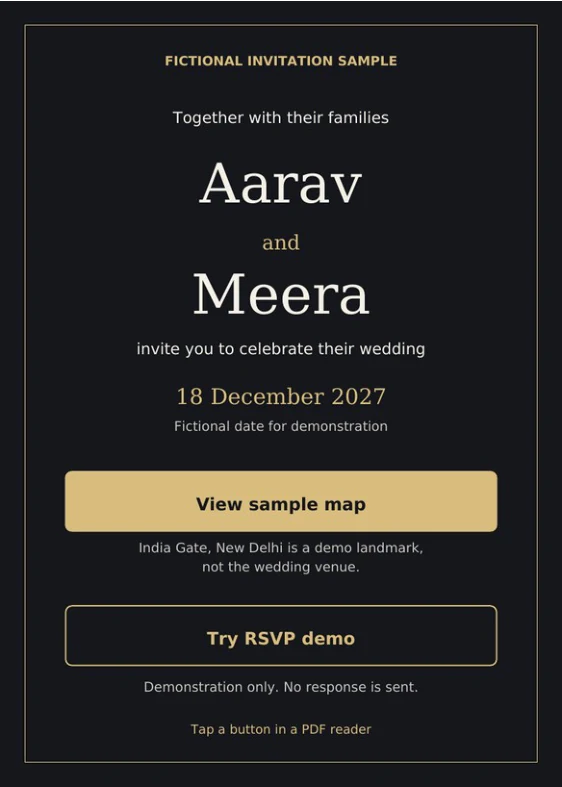
Download the sample PDF below to try its buttons. This preview is an image.