
How to Add a QR Code to a Wedding Invitation and Test It
A QR code can open your venue map, RSVP form or wedding website. Choose one destination, add the code to the invitation, then test the file guests will actually receive. Keep a direct link alongside it for easy access on the same phone.
Jump to: Create the code | Place it clearly | Test before sharing | Working sample
1 Choose and check the destination
Open the exact guest-facing link first. Check the correct venue branch, the right RSVP form or your published wedding page. Do not use an editing link or a file that only your account can open. Test access while signed out.
2 Create and download the code
Open the Adobe Express QR generator. Paste your destination in Enter your URL, then select Generate QR code.
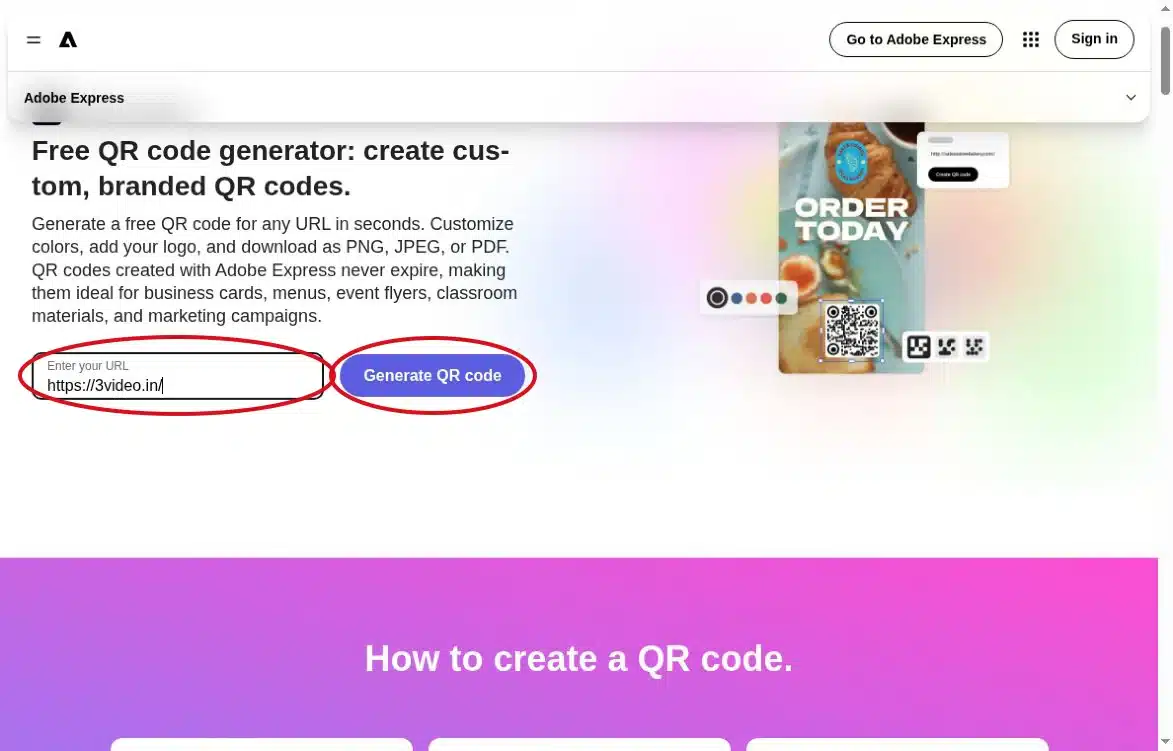
Actual Adobe page. The circled field uses the public 3VIDEO homepage as a demonstration, not a venue or RSVP link. Source
In the generator, confirm the URL, choose a plain dark code on white and select PNG in File format. Use Download to save it. Keep the downloaded file rather than taking a screenshot of the code.
These controls follow Adobe’s generator instructions. If your device is unsupported, use a supported device or browser; do not continue from an error screen.
3 Place the code without damaging it
Add the downloaded PNG to your invitation as an image, or send it to your designer with the destination link. Resize from a corner so it stays square. Leave its white border intact; keep flowers, text and frames outside that border. Do not stretch, crop or cover the code with a logo.
Add a short label such as “Scan for venue directions” or “Scan to RSVP”. Use a separate, clearly labelled code for each destination. If you need many links, a single guest-facing wedding page may be simpler.
The clear border is called the quiet zone. DENSO WAVE specifies four small QR squares on every side. Keep the generator’s full margin rather than trimming it.
Working sample
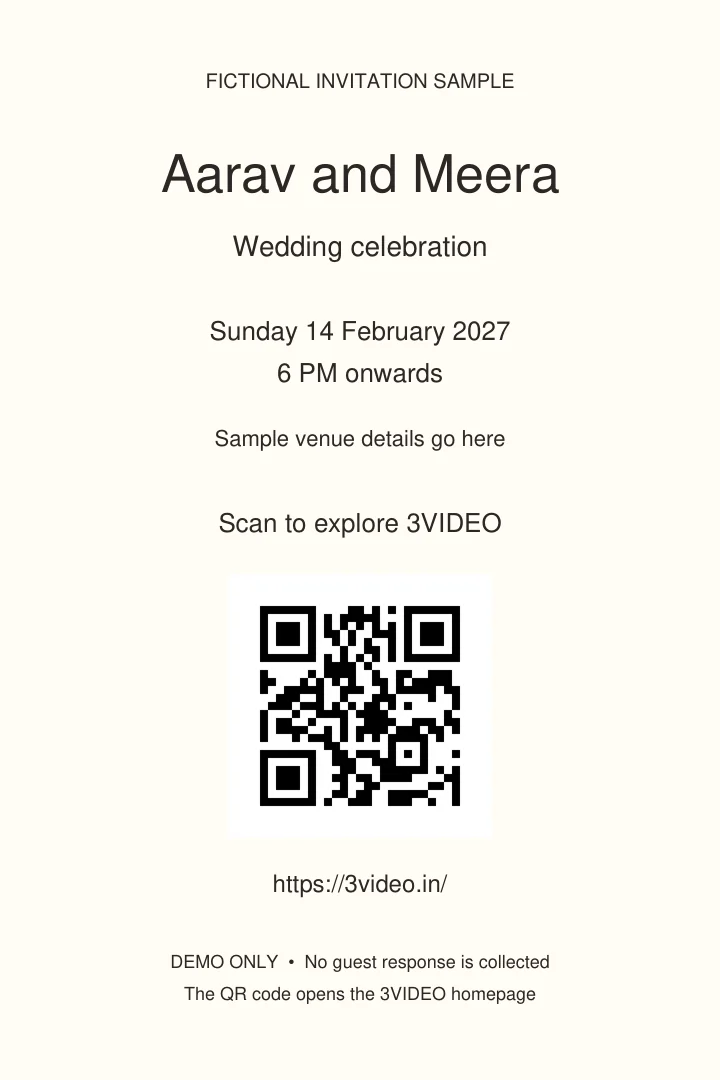
Download the working sample PDF (demo only)
This fictional sample opens https://3video.in/ and collects no RSVP response. Its QR pattern was decoded from the exported sample PDF image; this is not a claim of testing on every phone.
For your real invitation, replace the demo destination with your own checked link and generate a new code. The label must match the page that opens.
4 Test before sharing or printing
- Export the final PDF or image. Test that export, not only the design preview.
- Scan it from another device with the phone camera or a QR reader. Tap the result and check the actual page, venue or form that opens.
- Send the invitation to yourself through the channel you will use. Test the received file too; resizing or compression may affect the code.
- Ask another person to try the link without your signed-in account. Confirm the guest can see what they need without an unexpected access request.
- If printing, test an actual-size proof on the intended paper. Increase the code size if scanning is unreliable; there is no one size that guarantees every design will scan.
If scanning fails, try a larger code, restore the clear white border and replace a blurry copy with the original PNG. Keep strong contrast and remove overlays. Re-test after every change.
Make same phone access easy
Some phones and apps can recognise a QR code in a saved image. A direct tappable link is still easier when the invitation is already open on that phone. Add a clickable link in a PDF, or put the link in the message accompanying an image card.
Use our Google Maps and RSVP PDF guide for clickable buttons. Before approving the complete invitation, run through the wedding proofreading checklist.
Copy ready message for your designer
Please add a QR code for [checked guest link], labelled “[Scan for venue directions / Scan to RSVP]”. Keep it square with a clear white border and include a clickable or accompanying plain-link option. Please send the final exported file so I can test it before approval.
Will the code stop working
Adobe’s generator creates a static QR code: its encoded URL cannot be changed afterwards. A different URL needs a new code. The code itself does not expire, but its destination can be deleted, restricted or moved, so check the link again before sending.
Further guidance: QR readability problems and Google Lens image scanning.